
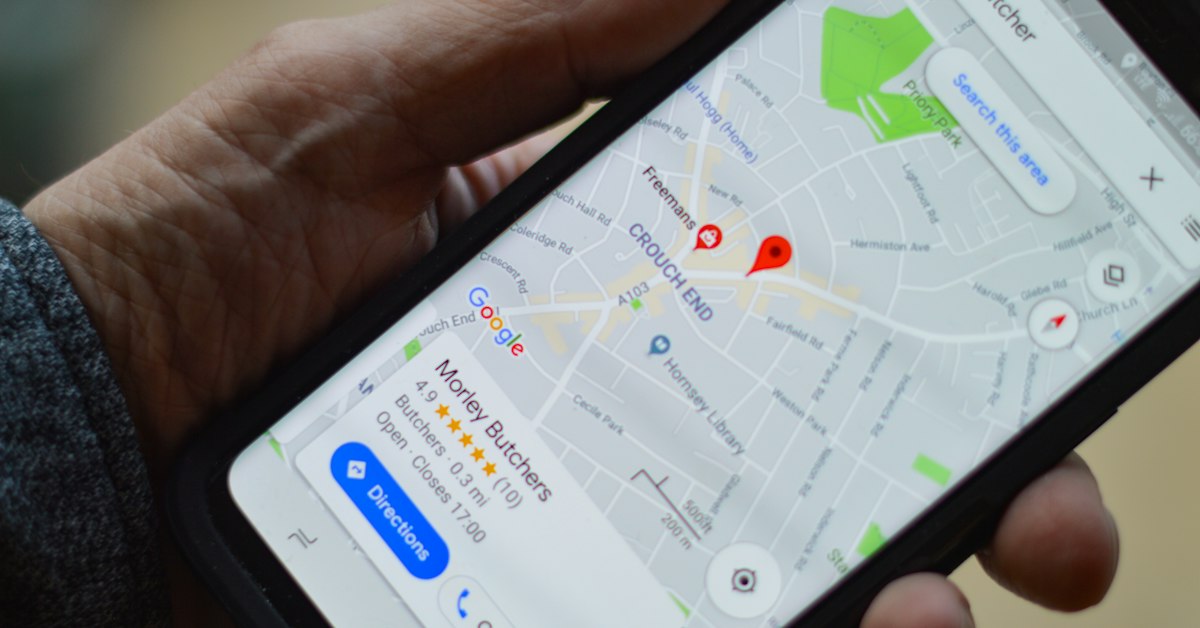
How to Set Up Google Business Profile for a Singapore Business
A Google Business Profile is the free listing that shows your business on Google Search and Google Maps. For a Singapore clinic, café, renovation contractor or home services company, it is often the first thing a customer sees before they call, visit or message you.
Setting one up takes about 20 minutes. Verification can take a few more days. The harder part is getting the details right first time, because wrong addresses, keyword-stuffed names and duplicate listings are the most common reasons profiles get suspended.
This guide walks through each step, explains the rules that matter most for Singapore businesses (shophouses, HDB home-based businesses, co-working offices and online-only shops), and ends with a checklist you can work through today.
Is your business eligible?
Google only gives profiles to businesses that meet customers in person. That means one of three set-ups:
- Storefront business: customers come to you at a fixed address during your stated hours, such as a shop in a mall, a clinic, a salon or a restaurant.
- Service-area business: you go to customers, such as an aircon servicing company, mover, plumber, cleaner or locksmith.
- Hybrid: you do both, such as a bakery that also delivers.
Some common Singapore set-ups are not eligible, according to Google’s own guidelines:
- Online-only shops. If you sell only through your website, Shopee or Lazada and never meet customers in person, Google says you are not eligible for a Business Profile.
- Virtual offices. A rented mailing address you do not operate from does not qualify.
- Co-working desks, unless the office has clear signage, receives customers during business hours and is staffed by your own team.
If you run an ecommerce business, your website and marketplace listings do the job a profile would. Our guide to ecommerce website development in Singapore covers that side.
What to prepare before you start
Have these ready so you do not stop halfway:
- A Google Account. Google recommends using one tied to your business email address rather than a personal Gmail.
- Your business name exactly as it appears on your signboard, website and invoices.
- Your full address, including unit number and six-digit postal code (storefronts only).
- A Singapore phone number you control and can answer. Google’s verification calls and texts do not reach IVR phone menus.
- Your website URL, opening hours and a short description of what you do.
- For video verification: access to your premises, signage, and something that proves you run the business (a till, a store room, a branded van, an invoice or utility bill in the business name).
Step-by-step: how to set up Google Business Profile
Step 1: Check whether a listing already exists
Search for your business name on Google Maps. Customers or Google itself may have created a listing already. If one exists and is unverified, claim it instead of creating a new one. On Maps, open the listing and choose the option to claim or manage the business. Creating a second listing for the same location breaks Google’s rules and can get your account suspended.
If someone else already owns the listing (a former staff member or agency, for example), use Google’s ownership request flow rather than starting a duplicate.
Step 2: Create the profile
- Sign in to your Google Account and go to business.google.com/add.
- Click Add your business to Google.
- Enter your business name and choose a primary category.
- Answer whether customers can visit you. Choose Yes only if you have a staffed location with permanent signage.
- Add your service areas if you travel to customers. You can list up to 20 areas, such as towns, districts or postal codes.
- Enter your phone number and website.
- Pick a verification option when prompted and follow the on-screen steps.
You can also start from the Google Maps app: tap Contribute, then Add place, then choose the option that says it is your business.
Step 3: Get the business name right
Use your real-world business name only. Google’s guidelines say the name must not include taglines, locations, phone numbers, URLs, services or “Pte Ltd”-style legal terms unless they appear consistently in your real branding.
| Wrong | Right |
|---|---|
| Sunrise Aircon Servicing Best Price Singapore | Sunrise Aircon |
| Kopi Corner @ Tiong Bahru (Open 24 Hours) | Kopi Corner |
| ABC Dental Pte Ltd – Implants & Braces | ABC Dental |
Keyword-stuffed names are one of the fastest routes to a suspension. They also look spammy to customers. Ranking comes from relevance, distance and reputation, not from cramming “Singapore” into your name.
Step 4: Set your address or service area
This is where many Singapore businesses go wrong.
- Shop, clinic or office that receives customers: show your full address. Put the unit number (e.g. #02-15) in address line 2. Make sure the map pin sits on the right building, which matters in large malls and industrial estates.
- Home-based business that visits customers: hide your address and set a service area instead. Google’s own example is a plumber who works from home: the residential address should be cleared from the profile.
- Hybrid: show the storefront address and add service areas.
Showing a HDB flat or private home address when customers never visit can lead to suspension, and it publishes your home location to strangers.
Step 5: Choose categories carefully
Your primary category has a big influence on which searches you appear in. Google advises choosing the fewest categories that describe your core business, and picking ones that complete the sentence “This business is a…” rather than “This business has a…”.
- Pick the most specific primary category available (for example, “Air conditioning repair service” rather than “Contractor”).
- Add a few secondary categories only if they describe what you genuinely are.
- Do not use categories as keywords for services you only occasionally offer.
Look at the top three competitors in your area on Google Maps to see which primary category they use. It is a quick, useful benchmark.
Step 6: Verify your business
Your profile will not appear publicly until it is verified. Google decides which methods you get based on your category, region, public information and other factors, and you cannot pick a method it does not offer. You may also be asked to use more than one method.
Possible methods include phone or text, email, a recorded video, a live video call and, less often now, a postcard. In practice, many new profiles are asked for a recorded video.
For video verification, Google’s requirements include:
- One continuous, unedited recording of at least 30 seconds, recorded and uploaded through the Business Profile on a mobile device. Pre-recorded clips are not accepted.
- Storefronts: show the surroundings (street signs, block numbers or neighbouring shops), your signage with the exact business name, and proof you manage the place, such as opening the till or entering a staff-only area.
- Service-area businesses: show landmarks near your base, your tools or branded equipment, and proof of management such as unlocking a branded van or showing an invoice or utility bill in the business name.
- No sensitive information (such as NRIC, bank or tax numbers) and no other people’s faces.
Google says video reviews can take up to five business days. If it fails, the profile shows the reasons and you can record a new video that fixes them. See Google’s video verification help page for the latest requirements.
Step 7: Complete the rest of the profile
A verified but half-empty profile wastes the effort. Fill in:
- Hours: your regular customer-facing hours, plus special hours for public holidays such as Chinese New Year, Hari Raya Puasa and Deepavali. Businesses that work by appointment only should not list hours.
- Description: up to a few short paragraphs on what you offer, who you serve and what makes you different. Google does not allow links, prices or sales promotions in the description.
- Services or menu: list your main services, ideally with short descriptions.
- Attributes: wheelchair access, payment options and other features that apply.
- Photos: your shopfront (so people recognise it from the street), interior, team at work, products and completed jobs. Add new ones regularly.
- Website link: point it to the most relevant page. A multi-outlet business should link each outlet to its own location page.
Reviews: how to ask for them properly
Reviews influence both rankings and whether people choose you. Google lets you share a review link or QR code with customers and encourages you to reply to reviews. It strictly prohibits:
- Offering discounts, freebies or payment in exchange for reviews, or for changing or removing a negative review.
- Asking only happy customers to review you while steering unhappy ones away (“review gating”).
- Pressuring customers to review on the spot, or telling staff to collect a set number of reviews or mention particular content.
Google can remove fake or incentivised reviews and may restrict profiles that break these rules, for example by blocking new reviews for a period or showing a warning to customers. A simple, honest approach works better: add your review link to receipts, WhatsApp follow-ups and email signatures, and ask every customer, not just the happy ones.
When replying, stay polite and factual. Do not reveal a customer’s personal details, booking information or medical details in a public reply. That protects the customer and keeps you on the right side of Singapore’s PDPA.
Keep the profile active
- Post updates on new services, events or seasonal offers. Posts are a good place for promotions, since the description is not.
- Check the Performance tab monthly to see searches, calls, direction requests and website clicks.
- Watch for suggested edits. Google and the public can propose changes. Check that your hours, phone number and category have not been altered.
- Keep details consistent across your website, Facebook page, directory listings and the profile. Mismatched phone numbers or addresses confuse both customers and search engines.
- Manage access properly. Add staff or your agency as managers rather than sharing your login, and keep primary ownership in a company account.
Your profile works best alongside a well-structured website. Our articles on common SEO mistakes Singapore businesses still make and making your business website AI-search friendly cover the website side.
Common mistakes that get profiles suspended or ignored
- Adding keywords or locations to the business name. Use only your real name.
- Listing a virtual office or unstaffed co-working address. These are not eligible.
- Showing a home address when customers never visit. Hide it and set a service area.
- Creating duplicate listings for the same location, often after losing access to an old one.
- Using a call-centre or IVR number that cannot receive verification calls.
- Changing key details right after verification, which can trigger re-verification. Get the name, address and category right before you verify.
- Buying or incentivising reviews. It risks review removal and profile restrictions.
- Letting an agency own the profile. If you part ways, recovering it can be slow.
Quick setup checklist
| Task | Done? |
|---|---|
| Searched Google Maps for an existing listing | ☐ |
| Business name matches signage, with no extra keywords | ☐ |
| Address shown only if customers visit; home address hidden | ☐ |
| Service areas added (up to 20) if you travel to customers | ☐ |
| Specific primary category chosen | ☐ |
| Local phone number you can answer | ☐ |
| Verification completed | ☐ |
| Hours and public holiday hours set | ☐ |
| Description, services and attributes filled in | ☐ |
| At least 10 good photos uploaded, including shopfront | ☐ |
| Review link shared with all customers | ☐ |
| Staff or agency added as managers, not owners | ☐ |
For the full rules, read Google’s guidelines for representing your business. Google updates its policies and verification steps from time to time, so check them before you start. If you would rather hand the job to someone else, our guide to digital marketing services for SMEs in Singapore explains what to look for.
Frequently asked questions
Is Google Business Profile free in Singapore?
Yes. Creating and managing a profile costs nothing. Google Ads, including location ads, are separate and paid.
Can I list my business if I work from my HDB flat?
Yes, if you visit customers or deliver to them. Set it up as a service-area business, hide your home address and list the areas you serve. Do not show your home address unless customers genuinely visit you there with permanent signage in place.
How long does Google Business Profile verification take?
Phone, text and email can be quick. Google says video recordings can take up to five business days to review. If your video is rejected, you can submit a new one that fixes the listed issues.
Can my online shop have a Google Business Profile?
Not if it is online-only. Google’s guidelines say businesses with no in-person contact, such as ecommerce stores with only a virtual storefront, are not eligible. Focus on your website and marketplace listings instead.
Can I offer a discount for Google reviews?
No. Google prohibits offering incentives for reviews and may remove those reviews and restrict your profile. You can ask every customer for honest feedback without a reward.